Duplicating (cloning) a record is a common need in many business applications especially when users frequently create similar entries. While Power Apps Model-Driven Apps don’t offer a native “Duplicate Record” button, you can easily add one yourself using JavaScript and the Command bar. I have a solution for Auto Parts and I will use it in this guide to duplicate an auto part.
In this guide, I’ll walk you through the full process:
- Writing the JavaScript to clone a record
- Adding a custom ribbon button
- Connecting everything so the button duplicates the current record with one click
Let’s get started.
Why Use JavaScript for Record Duplication?
Model-driven apps allow server-side duplication using Power Automate, but JavaScript offers benefits such as:
- Instant execution (no flow delays)
- Full control over which fields get copied
- Better user experience and no leaving the form
- Works across web and mobile clients
Step 1 — Create a JavaScript Web Resource
In Power Apps:
- Go to Solutions
- Open your solution or create a new one
- Add a new JavaScript (JS) web resource
- Paste the following code and click save
- Publish your JavaScript file
Screenshot:

JavaScript Code: Duplicate Current Record
function duplicateRecord(primaryControl) {
    var formContext = primaryControl;
    var entityName = formContext.data.entity.getEntityName();
    var recordId = formContext.data.entity.getId();

    if (!recordId) {
        Xrm.Navigation.openAlertDialog({ text: "Please save the record before duplicating." });
        return;
    }

    recordId = recordId.replace("{", "").replace("}", "");

    Xrm.WebApi.retrieveRecord(entityName, recordId)
        .then(function (result) {

            var clone = {};

            for (var field in result) {
                if (
                    field.startsWith("_") ||
                    field.endsWith("_value") ||
                    field === entityName + "id" ||
                    field === "createdon" ||
                    field === "modifiedon"
                ) {
                    continue;
                }

                clone[field] = result[field];
            }

            return Xrm.WebApi.createRecord(entityName, clone);
        })
        .then(function (response) {

            // Open duplicated record in a modal dialog
            var pageInput = {
                pageType: "entityrecord",
                entityName: entityName,
                entityId: response.id
            };

            var navigationOptions = {
                target: 2,          // 2 = Dialog
                width: { value: 80, unit: "%" },
                height: { value: 80, unit: "%" },
                position: 1         // 1 = Center
            };

            Xrm.Navigation.navigateTo(pageInput, navigationOptions);
        })
        .catch(function (error) {
            console.error(error);
            Xrm.Navigation.openAlertDialog({ text: error.message });
        });
}
What this script does:
- Retrieves the current record data
- Strips out system-managed fields
- Creates a new record with the same values
- Opens the new duplicated record via a modal dialog
Step 2 — Add a Custom Ribbon Button (Ribbon Workbench)
To expose your duplicate function to users, you’ll add a button to the command bar.
Steps:
- Click on Apps and open your app in Edit mode
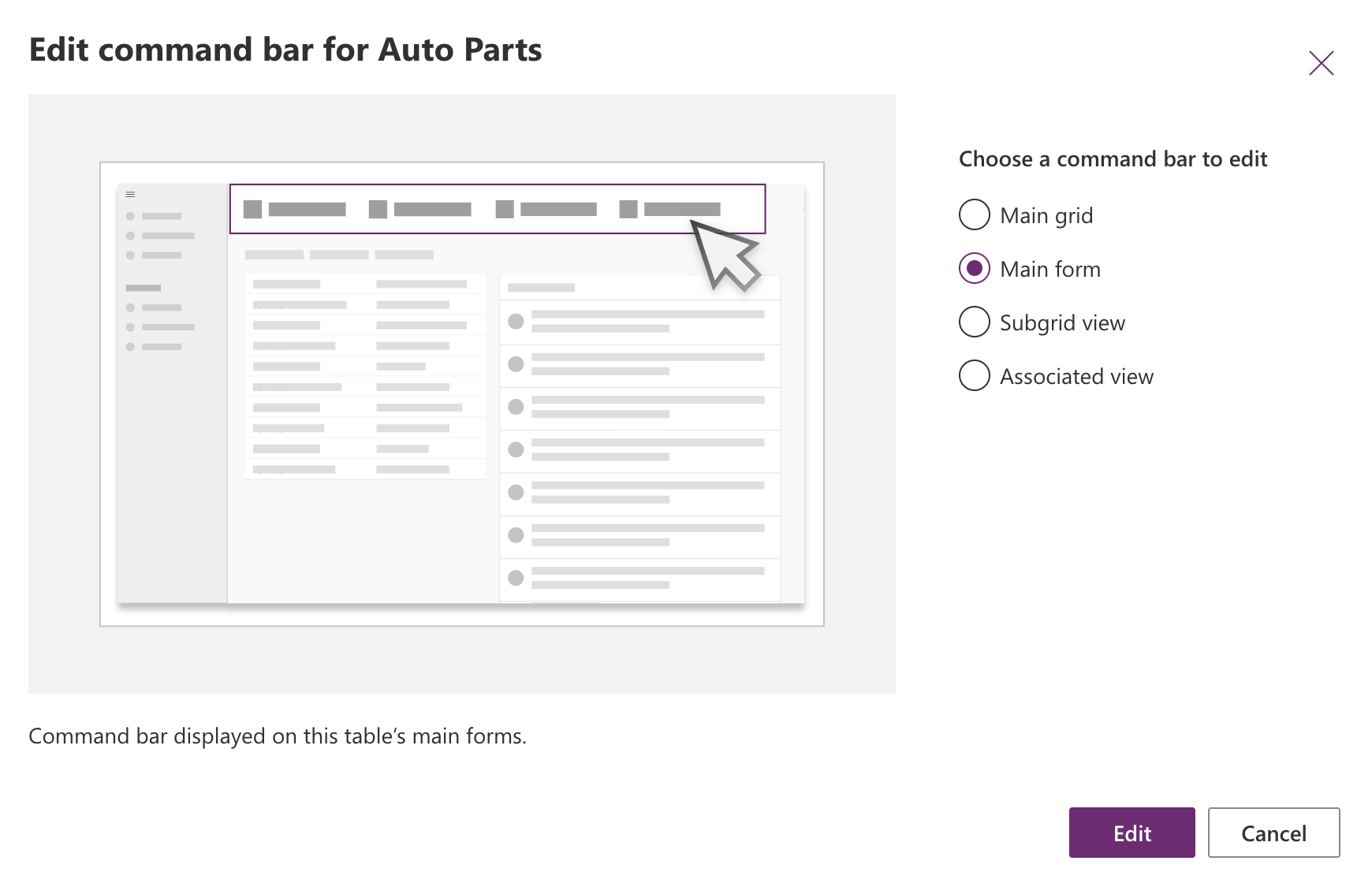
- Click on … next to your entity’s page in your app and click on Edit command bar.

Select Main form and then click on Edit

Click on New and then Command

- Name your control as Duplicate
- Use Copy icon
- Select Run JavaScript as Action
- Add your new web resource by using Add library
- Enter duplicateRecord in function name box.
- Click on Add parameter and set Parameter 1 to PrimaryControl

Step 3 — Publish and Test
- Save the your changes
- Publish the solution
- Open a record in your model-driven app
- Click your new Duplicate button

5. A model dialog will popup with new cloned record